
Other tools
Use these tools to help you review identifications faster.
SKIP AHEAD TO
Adjust the brightness, contrast or saturation of an image
Quick actions
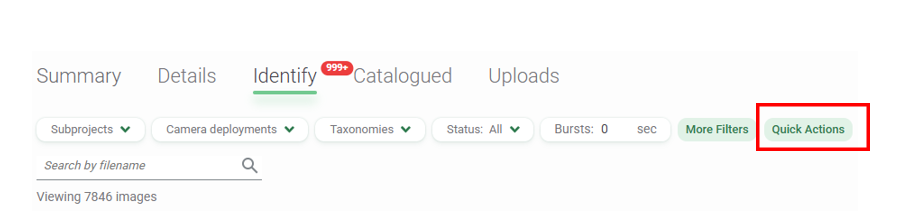
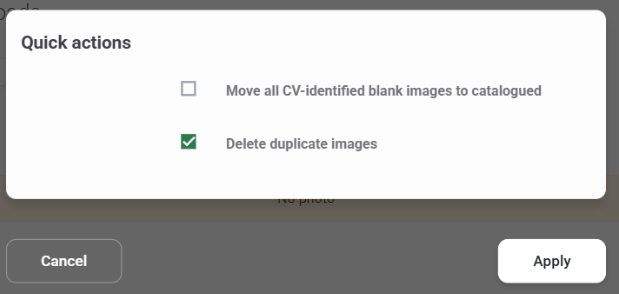
Quick actions are bulk tools in your project's Identify tab that help you speed up common data-management tasks, so you can focus on identifying. The following quick actions are currently available.
| Name | Action |
|---|---|
| Delete duplicate images | Deletes all duplicate images (or sequences) from the project. Images are considered duplicates if they share the same project ID, deployment ID, timestamp, base filename (e.g., name.jpg, name (1).jpg, name (2).jpg), and file size. When duplicates are found, the most recently uploaded copy is deleted (regardless of whether it's in the Identify or Catalogued tab), and the first uploaded copy is kept. |
| Move all CV-identified blank images to Catalogued | Moves images (or sequences) that the Computer Vision model identified as Blank from the Identify tab to the Catalogued tab. |
Adjust the brightness, contrast or saturation of an image
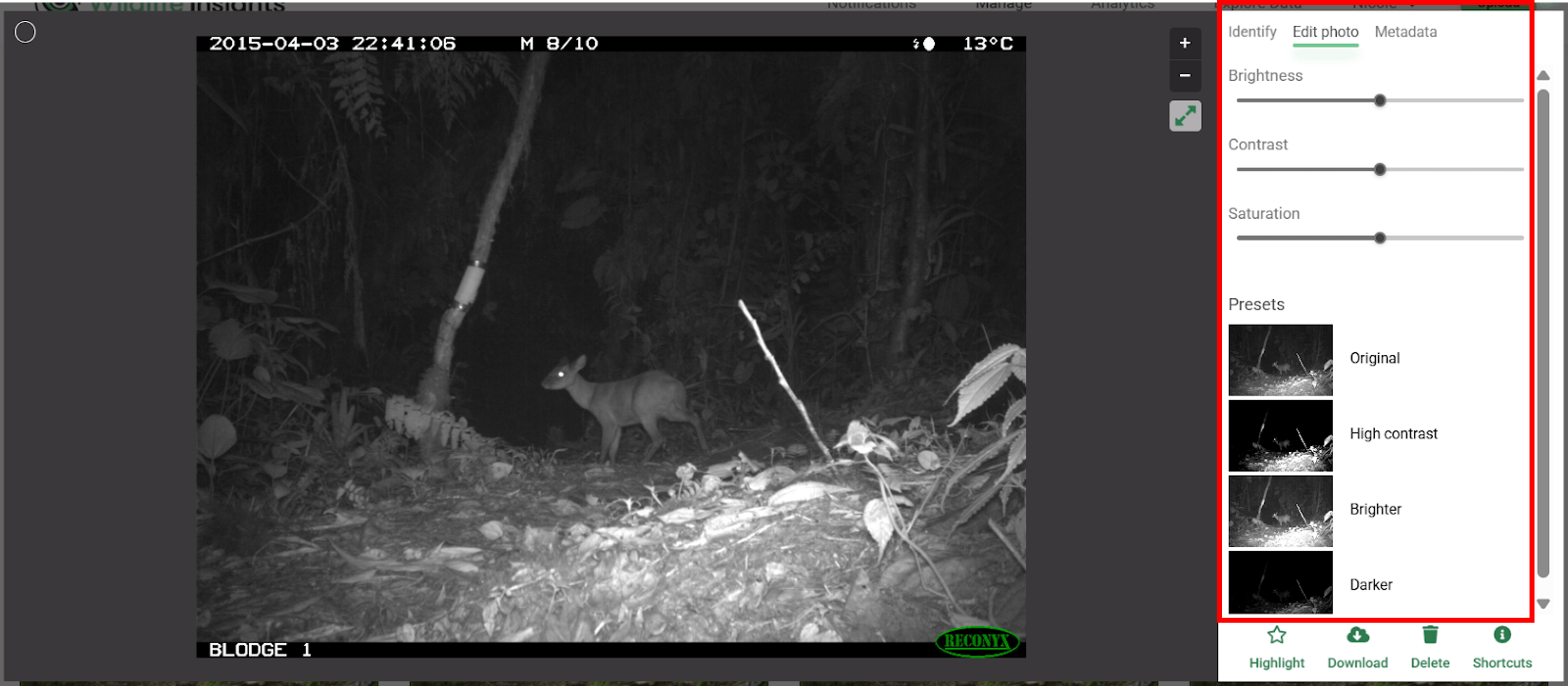
If your images are too dark, too light, or anything in between, you can use the Edit Photo tools to get a clearer picture of what’s in an image. On the top of the identification panel, click the Edit Photo tab and adjust the sliders for brightness, contrast or saturation or choose one of the presets available.
Correct image timestamp
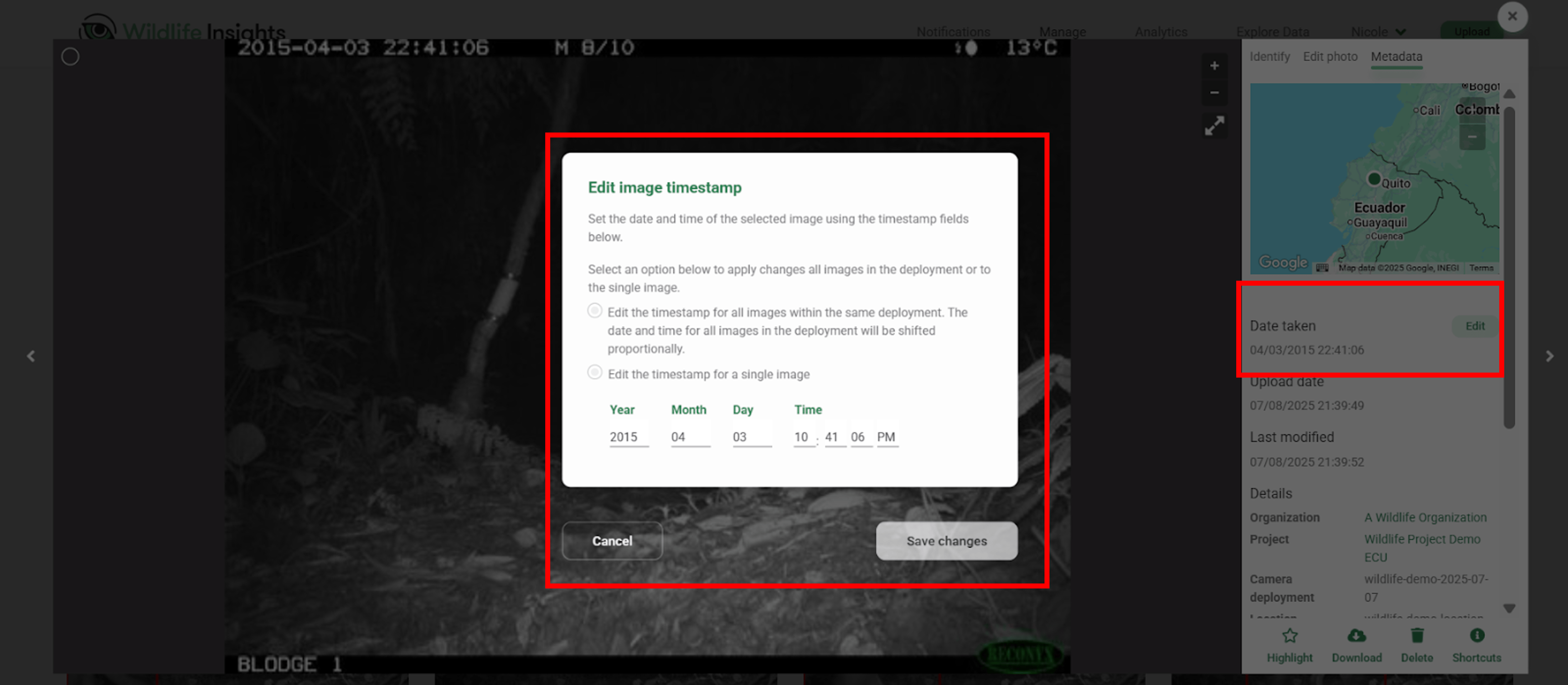
You can fix incorrect date/time stamps caused by camera failures or metadata issues. Navigate to the Metadata tab of any individual image and click Edit to change the date and time taken. You can apply the new date/time to the single image or update the date/time for all images within the same deployment. WARNING! For the latter, the timestamps of ALL OTHER IMAGES in the deployment will shift proportionally.
Favorite, or Highlight an image
When you’re viewing an image in the large preview mode, you can easily flag it as a favorite so you can quickly access it later! In the identification panel, click on the star icon above the word Highlight.
Note: All highlighted images will be available publicly on the Explore page.

Shortcut keys
You can use these shortcut keys to review images quickly:
Windows/Chrome OS/Linux | macOS | Action |
|---|---|---|
|
| Edit identification |
|
| Mark as blank |
|
| Accept identification |
|
| Apply the last saved identification |
|
| Accept bounding boxes |
|
| Save changes |
|
| Highlight an image |
|
| Move to the next image or group |
|
| Move to the previous image or group |
|
| Move to the next image within a burst |
|
| Move to the previous image within a burst |
|
| Zoom in |
|
| Zoom out |
Bulk actions
Quickly select multiple images in the thumbnail view by using these common shortcuts:
Windows/Chrome OS/Linux | macOS | Action |
|---|---|---|
|
| Select all images on a page |
|
| Add or remove from a selection |
|
| Select multiple images by drawing a selection box over multiple thumbnails |
|
| Select a range of images by shift+clicking on one thumbnail, then Shift+clicking on another to select all images in between them |
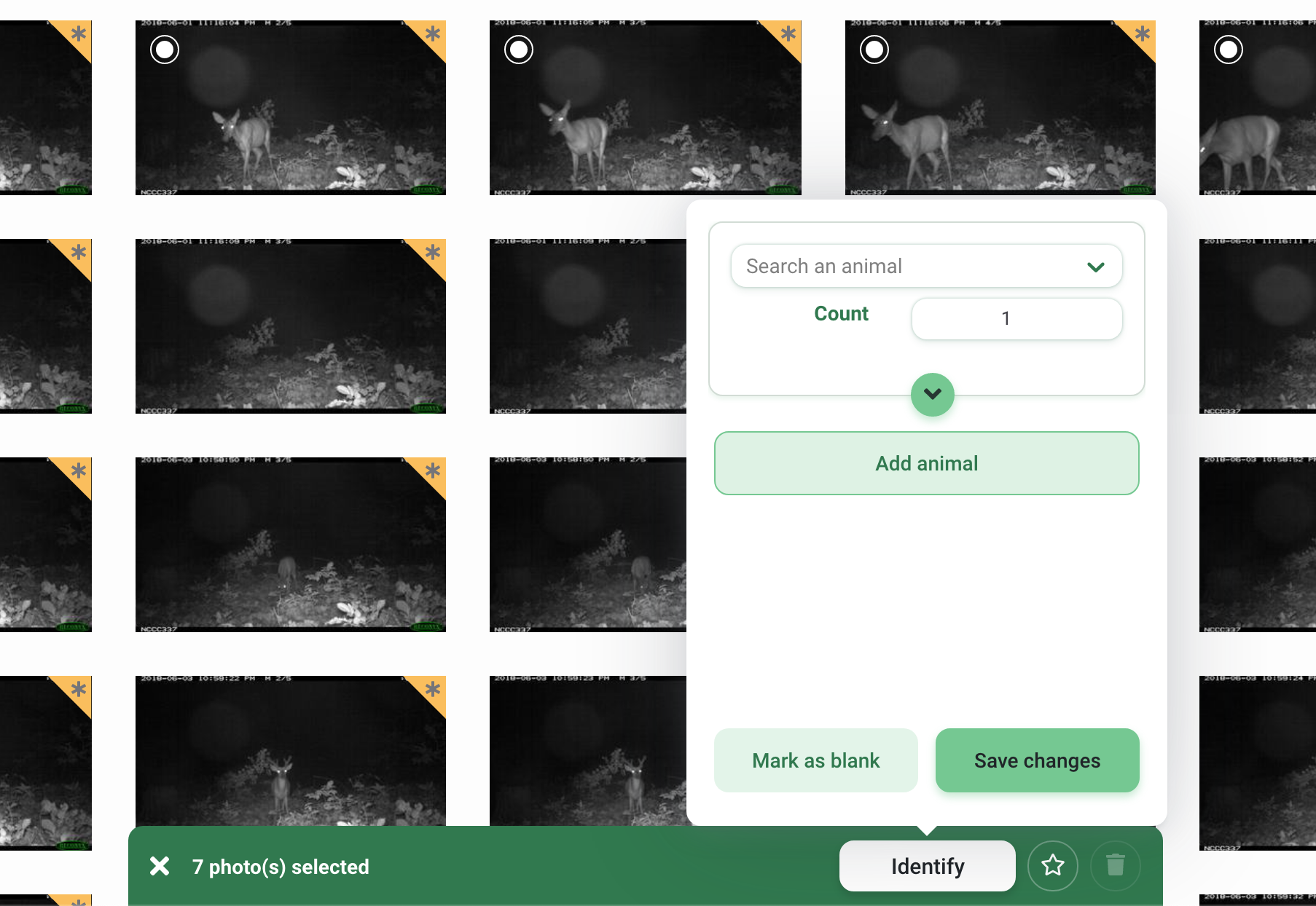
Each image selected will display a white circle in the top left-hand corner of the thumbnail image. Once images are selected in thumbnail view, a green bar will appear at the bottom of the screen, where you can:
- View the number of images selected
- Click the Identify button to assign an identification, count, or additional details, mark as blank or add an animal to all images selected
- Favorite all images selected
- Delete all images selected
 Back to the guide